

17 min read · Updated: 2026-11-29
An online shopping account is a profile you create with a store to save contact and delivery details, place orders, and review purchases. Depending on the store, it may also hold saved payment methods, preferences, and return information. You can use accounts to keep each store’s orders organized, but you generally manage them separately.
Creating an account usually means providing an email address, choosing a password, and adding only the details needed for checkout. Before saving payment or address information, check the store’s privacy and account settings, and use a unique password you do not use elsewhere.
A well-managed account makes repeat purchases and order tracking simpler, especially when shopping across stores or currencies. The sections below explain account basics, setup choices, useful features, and ways to keep international order details clear.
- A shopping account stores profile details and may keep order records for one retailer.
- Use an accessible email, a unique password, and accurate delivery information when setting one up.
- Review each order record and keep confirmation messages for follow-up.
- For international orders, check the currency and destination details on both the order and payment record.
What an Online Shopping Account Is
A Store Profile in Practice
An online shopping account is a personal profile linked to a particular retailer, giving you a place to manage purchases and selected checkout details. After signing in, you may see your order history, delivery addresses, and account preferences together. The exact tools vary by store, so check what the account includes before adding information.
- Choose the store’s account or guest checkout option.
- Enter the requested contact details.
- Create a unique password if registration is required.
- Review the profile and order details after checkout.
An account is different from a guest checkout, which lets you place an order without creating a lasting profile. Guest purchases may still generate confirmation and tracking messages, but the store may not gather them into an ongoing order history. If you shop at the same store again, an account can make details easier to find.
Accounts belong to individual stores rather than automatically connecting all your online shopping. For example, an order from one retailer will not usually appear in another retailer’s account. When checking an international order’s currency details, bugünkü döviz kurları can help you understand the conversion context without changing the store’s recorded transaction.
- Profile: contact and delivery details
- Orders: purchase and tracking records
- Preferences: settings offered by the store
- Sign-in: access to account features
Why Shoppers Create Accounts
An account is useful when you want a store to keep your order history and make repeat checkout less repetitive. You can often revisit a past purchase to confirm what you ordered or check its progress. Those records can help distinguish orders when you buy similar products at different times.
Saved addresses can reduce typing, but they also need regular review. A previous delivery address may no longer be suitable, and selecting it by mistake can send an order to the wrong place. Keep only addresses you expect to use, and check the selected destination on every order.
Accounts can also provide a central place to change contact details or communication preferences, where those controls are available. They do not guarantee that every store feature will be offered, nor do they make an order automatically visible across other shops. Treat each account as a separate record and update it when your details change.
How to Create an Account and Set Up Your Profile
Register with Essential Details
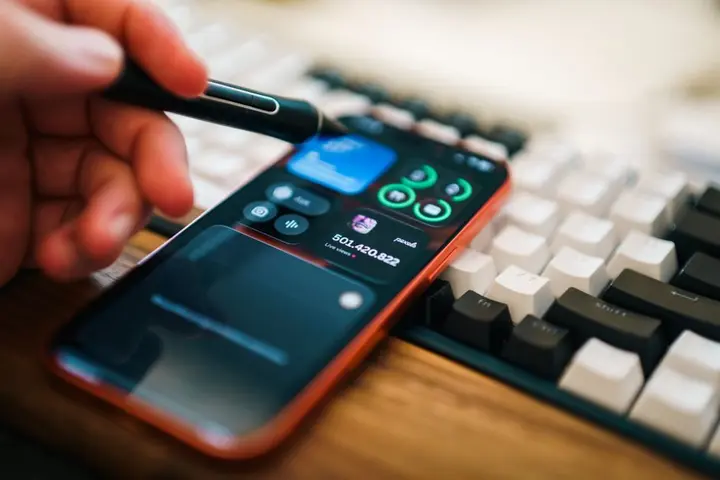
Start at the store’s official website or app and look for its sign-in or account option. Registration commonly asks for an email address and password; add a phone number or other detail only when the store requests it for a clear purpose. For a euro-priced order, euro TL döviz çevirici can help estimate its value in Turkish lira before you compare records.
Use an email address you can access, because stores commonly send order confirmations, sign-in notices, or password-reset instructions there. Create a password that is unique to that store and difficult for someone else to guess. If the store offers an additional sign-in verification method, consider enabling it to strengthen account access.
Before submitting the form, check that the web address belongs to the retailer and that the required fields make sense. Read the store’s privacy information to understand how it handles account data and messages. Once registration is complete, follow any email verification prompt, then sign in to confirm that the profile is active.
Check Profile and Delivery Settings
Add a delivery address carefully, including the recipient name, street details, postal code, and country in the fields provided. Use the format requested by the store, since an international address may need information arranged differently from a domestic one. Compare the saved address with the one you intend to use before placing an order.
Review the profile’s contact information and notification choices after setup. A current email address helps you receive order updates, while a phone number may be requested for delivery coordination. If a field is optional and you do not see a practical need for it, you can leave it blank rather than sharing extra personal details.
Check whether the store distinguishes billing and delivery addresses, then select the correct option during checkout. A billing address may be used for payment verification, while the delivery address tells the carrier where to take the parcel. Keep each accurate, and revisit the profile when you move or change contact information.
- Confirm the email address is accessible.
- Enter the full delivery address in the right fields.
- Review billing and delivery addresses separately.
- Choose only the notifications you want.
Account Features That Make Shopping Easier
Use Records for Follow-Up
Order history gives you a record of purchases associated with your account, often including the order date, items, and current status. Open the specific order rather than relying only on a general account page, since tracking or delivery details may sit inside its record. Save the confirmation message as another reference if you need it later.
- ☐ Check the item and selected options against your confirmation.
- ☐ Confirm the order status and destination address.
- ☐ Keep the order reference available if you contact support.
- ☐ Review the record again after a return or order change.
When an order is delayed or an item arrives incorrectly, its record can help you identify the relevant purchase before contacting the store. Check the order number, item description, and delivery status first. This reduces confusion if you have placed several orders or bought similar items from the same retailer.
Order records are useful for comparing what you intended to buy with what the store processed. Review item options, quantities, delivery address, and any displayed charges in the order details. If a record appears incomplete or does not match your confirmation, contact the store through its official support channel and keep the messages together.
- Open the matching order record.
- Check items, quantities, and delivery status.
- Compare details with the confirmation message.
- Keep support messages with the order reference.
| Choice | Useful for | Consider |
|---|---|---|
| Shopping account | Repeat purchases and order history | Keep saved details current |
| Guest checkout | A one-time purchase | Order records may be less centralized |
| Saved address | Faster repeat delivery entry | Check destination before checkout |
| Saved payment method | Quicker payment entry | Use only if comfortable and supported |
Choose Helpful Account Options
Stores may offer different account features, so choose according to how you shop rather than assuming every option is necessary. A saved address can speed up repeat checkout, while guest checkout can suit a one-time purchase. A saved payment method may be convenient, but it is optional where the store allows checkout without one.
Use the account settings to control which details remain saved and which messages you receive. Removing an old address can prevent accidental selection, and changing notification preferences can reduce irrelevant messages. Check whether deleting a payment method or profile detail affects an active order before making changes.
A password manager can help you keep separate, strong sign-in details for different stores without relying on memory or reusing passwords. If you use a shared device, sign out after shopping and avoid saving credentials in a browser other people can access. These habits protect the account while keeping its practical features available.
Check which currency the store displays before comparing an international order with your account records.
Managing Currency and International Order Details
Read the Currency Shown
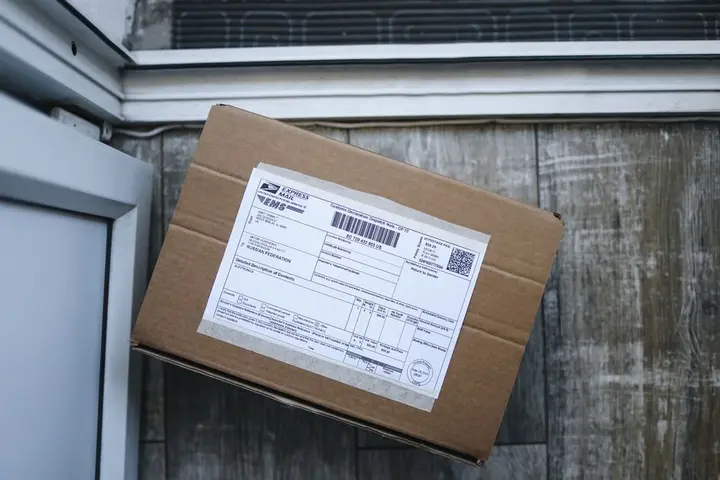
Check which currency the store displays before comparing an international order with your account records. A product page, checkout screen, and payment statement may show amounts in different currencies, so note the currency beside each figure. The amount charged by your payment provider may also reflect its conversion process and applicable fees.
For example, a shopper reviewing an order priced in euros should record the store’s listed amount and the currency shown at checkout. The payment statement may present a converted amount, making it different from the original order total. Keep both figures and their currencies together so later comparisons do not mistake a conversion for a pricing error.
An account’s order history generally records the transaction details supplied by that store, but it may not explain every conversion applied by a payment provider. Check the store order and the payment record separately when the amounts differ. If you need clarification, contact the store or payment provider with the relevant order and transaction details.
Keep International Details Consistent
For an international purchase, review the destination country, postal code, and contact details before submitting the order. A complete address helps the store and delivery service identify where the parcel should go, while a reachable email address supports order updates. Check that the account’s saved address has not replaced the destination you intended to use.
Keep the order confirmation and tracking information with the matching account record, especially when you have purchases from several stores. These references help you identify which shipment an update concerns and what details to provide if you ask for support. Avoid assuming that an account page will contain every message sent by the store or carrier.
After checkout, compare the confirmation with the final delivery address and the currency shown on the order. If you notice an error, use the store’s official account or support process promptly, because some details may be difficult to change after dispatch. Retain the confirmation until the order is delivered and any follow-up is resolved.
Common Account Problems to Avoid
Fixing Checkout and Order Errors
Before placing an order, check that the delivery address, selected items, and payment details match what you intended. A saved address may be outdated, or a quantity may have changed while you were browsing. Reviewing the checkout summary gives you a chance to correct these errors before the order is submitted.
- Compare the order summary with your intended items and quantities.
- Verify your delivery address before submitting payment.
- Check order history before placing a replacement order.
If an order appears twice, check the account’s order history and your email before trying checkout again. A delayed confirmation does not always mean the first payment failed, and placing a second order could create a duplicate shipment. If the status is unclear, contact the store through its official support channel and provide the order reference if available.
When comparing an older dollar-denominated order with its approximate cost in lira, bugün dolar kaç TL can help you check the exchange-rate equivalent. Remember that the final amount shown by a card issuer may differ because of its conversion method, fees, or the date the transaction is processed. Keep the store’s order confirmation as the record of the amount charged.
- Review the checkout summary before submitting.
- Check order history before retrying a payment.
- Save the confirmation and order reference.
Handling Missing Confirmations
If a confirmation email does not arrive, sign in to the store’s account and check the order history first. The order may be recorded there even if the email was filtered, delayed, or sent to an old address. Search your inbox and junk folder for the store name or order reference before contacting support.
A pending payment and a confirmed order are not always the same thing. Some stores show an order as processing while payment authorization is still being checked, so read the status description rather than assuming the parcel has shipped. If the store asks you to wait, keep the order page available and check it again through the official site.
When contacting support, share only the details needed to identify the purchase, such as an order reference and the email on the account. Do not send a full card number or password in a message. If the order history remains empty but a payment appears on your statement, ask the store or payment provider to clarify the transaction before ordering again.
Keep Your Login and Personal Details Safe
Protecting Sign-In Credentials
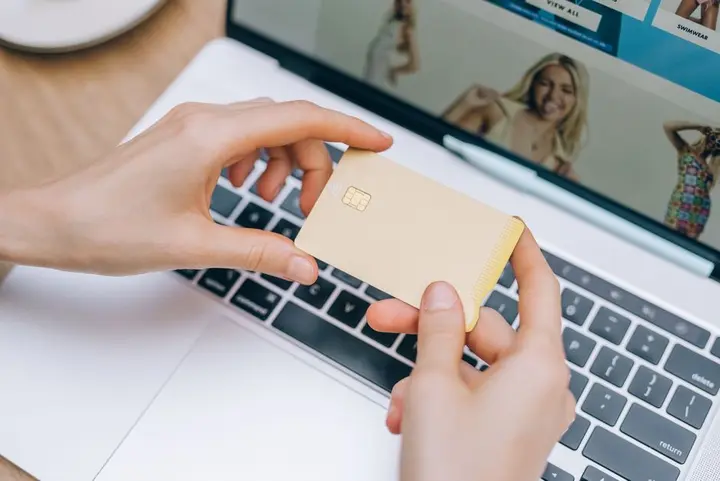
Use a unique password for each shopping account so a password exposed on one site cannot automatically open another. A long passphrase made from unrelated words can be easier to remember than a short, complicated string. If the store offers a password manager or two-step verification, use those tools to reduce the risk of an unauthorized sign-in.
Avoid signing in through links in unexpected emails or messages. Open the store’s website or app yourself, then check account alerts and order activity there. This habit helps you avoid fake sign-in pages designed to capture credentials, particularly when a message claims that payment or delivery details need urgent attention.
If you use a shared or public device, do not save your password in the browser and sign out when finished. Close the shopping page after signing out, especially if the browser may retain account details. On a personal device, use a screen lock and keep its software current so saved shopping information is less exposed if the device is lost.
- Create a distinct password for each store.
- Turn on two-step verification if available.
- Sign out on shared devices.
Limiting Saved Personal Data
Keep only the personal details an account needs to complete purchases and deliveries. A store may need a current email and delivery address, but optional profile fields can often remain blank. Reducing stored information limits what is exposed if an account is accessed without your permission or a device is shared.
Review saved addresses and payment methods when your circumstances change. Remove an old delivery location or expired payment option rather than leaving several choices that could cause a checkout mistake. Before adding a new card, confirm that the account page belongs to the genuine store and that you are using a secure connection.
Treat account recovery questions and verification codes as sensitive information. Do not reuse easy-to-guess answers that someone could learn from public profiles, and never give a one-time code to a caller or message sender claiming to be support. If you receive a code you did not request, change your password and review recent account activity.
Tips for Organizing Orders Across Stores
Building a Simple Order Record
Use each store’s order history as the first place to check an order’s status, confirmation details, and previous purchases. When you shop across several stores, keep a separate record with the store name, order reference, purchase date, and expected delivery information. This makes it easier to find the right order without relying on memory or searching every inbox folder.
A basic spreadsheet or notes app can hold these details without mixing one store’s account information with another’s. Add a short item description and the delivery address used, particularly when you send orders to different locations. Do not put passwords or full payment-card details in the record; store those only in secure tools designed for them.
Update the record when an order ships, arrives, or is returned, and keep the store’s confirmation email until the purchase is settled. If a parcel is delayed, the order reference and status history help you explain the issue to support. Once a return or refund is complete, mark it clearly so you do not mistake it for an open order.
- Record the store and order reference.
- Note the delivery address and order status.
- Mark returns and refunds as resolved.
Separating Store Accounts Clearly
Use a consistent method to identify store accounts, such as a private list of store names and the email address used for each. This is especially helpful when different stores send order notices to different inboxes. Keep the list in a protected place, rather than adding credentials to an ordinary shopping spreadsheet.
Where a store offers account labels, saved lists, or order filters, use them to distinguish purchases by purpose or delivery address. For example, separate personal orders from household supplies so the relevant history is easier to scan. These features organize activity within one store, while a separate order log can provide a broader view across stores.
Check each account’s order history before asking about a delivery or starting a return. Stores may use different return windows, status labels, and support processes, so avoid assuming one shop’s rules apply elsewhere. Keep the relevant receipt and correspondence together until the issue is resolved, then remove any temporary notes that contain unnecessary personal information.
When to Update or Close an Account

Updating Details After Changes
Update an account as soon as a key detail changes, especially your email address or delivery location. An old email can prevent you from receiving order confirmations and recovery messages, while an outdated address can send a parcel to the wrong place. Check both the profile page and any saved checkout addresses, since they may be managed separately.
Before placing an order after moving, inspect the address displayed at checkout rather than assuming the profile update changed every saved location. If you change your email, confirm the new address using the store’s verification process and make sure you can still access the account. Keep access to the old inbox until outstanding orders and returns are settled.
Refresh payment details when a card expires or is replaced, and remove methods you no longer use. A failed payment can delay an order, but adding several old cards can also make checkout confusing. After making changes, review the account’s saved details and place an order only when the displayed information is correct.
- Update your email and delivery address promptly.
- Verify saved checkout addresses separately.
- Remove expired or unused payment methods.
Closing an Unused Account
If you no longer shop with a store, review open orders, returns, refunds, and downloadable receipts before requesting account closure. Save records you may need for delivery questions or purchase documentation, but keep them in a secure place. Closing an account too soon can make it harder to view order details or contact support about an unfinished transaction.
Look in account settings for the store’s closure or privacy options, and read what happens to order records before confirming. Some stores distinguish between signing out, deleting saved payment information, and closing the account entirely. If the option is unclear, contact the store using its official support channel and ask how closure affects current orders.
After submitting a closure request, keep any confirmation from the store and avoid trying to sign in if the store says access has ended. If you only want to stop using the account temporarily, removing saved payment details and signing out may be a more practical choice. Use a password manager or private record to update any login information you decide to retain.
Frequently asked questions
Can I use one email address for several shopping accounts?
Yes, many shoppers use one email address across multiple stores, which can make confirmations easier to find in one inbox. Use a distinct password for every store, and keep track of which account belongs to which retailer. If messages become difficult to sort, create inbox folders or filters based on store names, while checking junk mail for missing order notices.
What should I do if I forget my shopping account password?
Use the password-reset option on the store’s official website or app, rather than following an unsolicited link in a message. Confirm that the reset email is addressed to the account’s registered inbox, then create a new password that you do not reuse elsewhere. If you no longer control that email address, contact the store’s official support team to ask about identity verification and account recovery.
Is it safe to save my payment method in a store account?
Saving a payment method can make repeat checkout faster, but it means the account holds information you should protect with a unique password and any available sign-in verification. Only save a card on a store account you trust and use regularly. Remove the card if you stop using the account, and check your payment activity if you notice an unfamiliar order or account change.
Can I check out without creating an account?
Some stores offer guest checkout, while others require an account to complete a purchase. Guest checkout can reduce the amount of profile information you maintain, but you may need your confirmation email or order reference to check delivery or request support. If you create an account, review its saved details and order history so future purchases are easier to manage.
Make Your Shopping Accounts Work for You
A shopping account is most useful when its details are current and its records are easy to find. Check the order summary before paying, use each store’s order history to verify purchases, and keep a simple private record when you shop across several retailers. Protect sign-in details with unique passwords, and save only the personal information needed to complete orders.
Your next step is to review one account you use regularly: confirm its email and delivery addresses, remove outdated payment options, and check any open orders or returns. Then apply the same routine to other stores as you shop. A few careful checks make confirmations easier to retrieve, reduce preventable checkout errors, and help you resolve delivery questions with the right information at hand.


